Using Form Forge
A D&D character sheet is full of numbers that depend on other numbers. Your Strength modifier comes from your Strength score. Your saving throws and skill checks build on those modifiers and your proficiency bonus. Normally you work all of that out by hand and redo it every time something changes.
Form Forge sets up those sums once and bakes them into your PDF. After that, you type in a value like your Strength score and the sheet fills in the results for you. No math, no scripting.
What "calculation" means here
A calculation is a rule that fills in one box from other boxes. For example: your Strength modifier is always your Strength score minus 10, divided by two, rounded down. You set that rule up once, and from then on the modifier appears on its own whenever you enter a Strength score. You do this for each value you want the sheet to work out: ability modifiers, saving throws, skill checks, and so on.
Throughout this guide, a "field" is one of the boxes on the sheet you can click into and type.
Before you start
You need a fillable PDF character sheet: the kind where you can click into the boxes and type. A scan or photo of a printed sheet won't work, because it has no real boxes for Form Forge to attach calculations to. The official D&D fillable character sheets work well.
1. Upload your character sheet
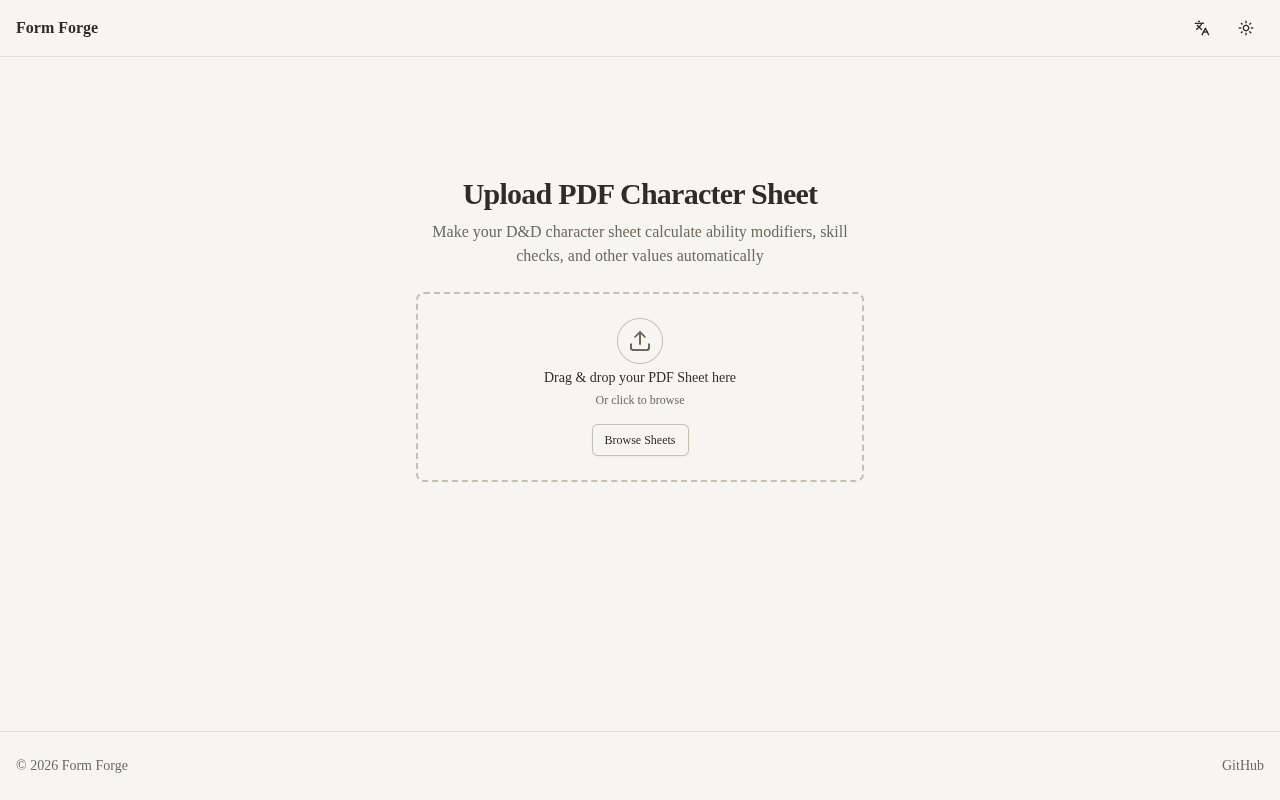
Open Form Forge and you land on the upload screen, headed Upload PDF Character Sheet. Click Browse Sheets and pick your fillable PDF from the file picker. Form Forge reads the sheet and takes you to the viewer.
2. Pick the fields for a calculation
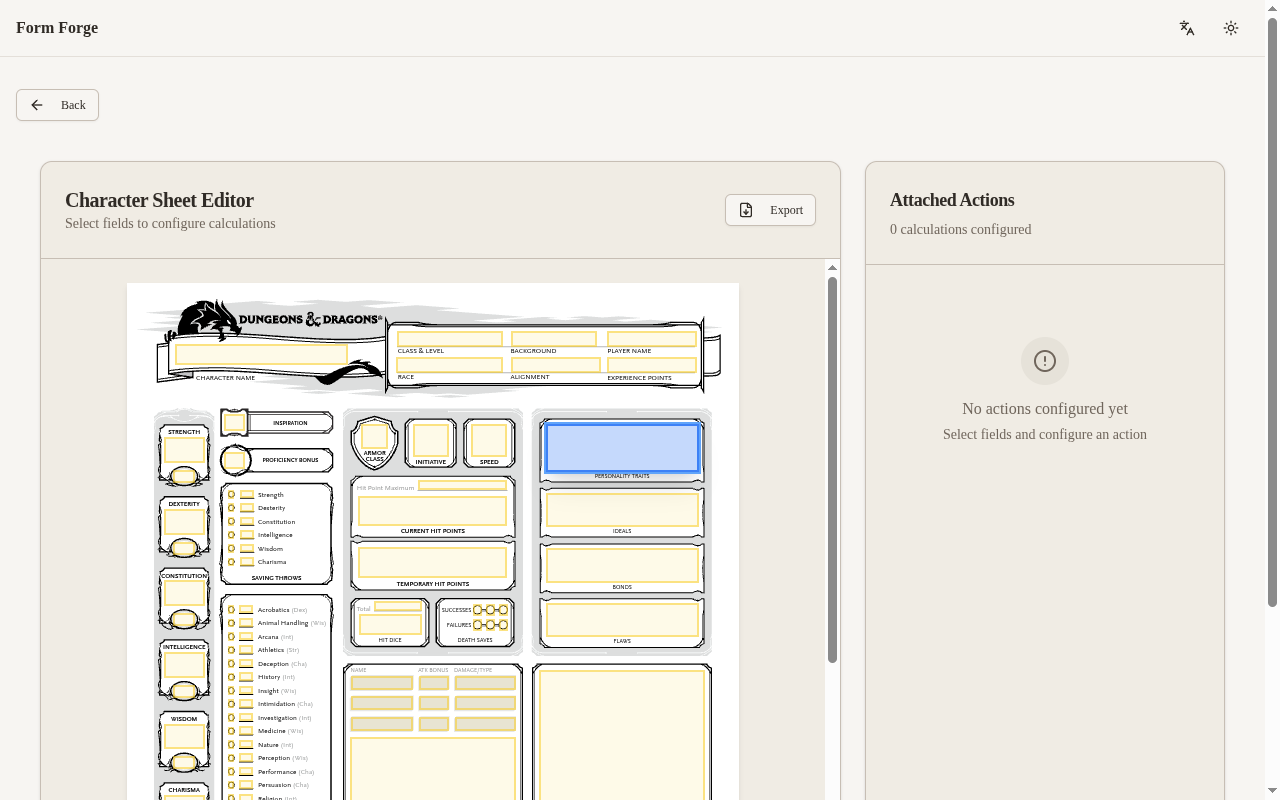
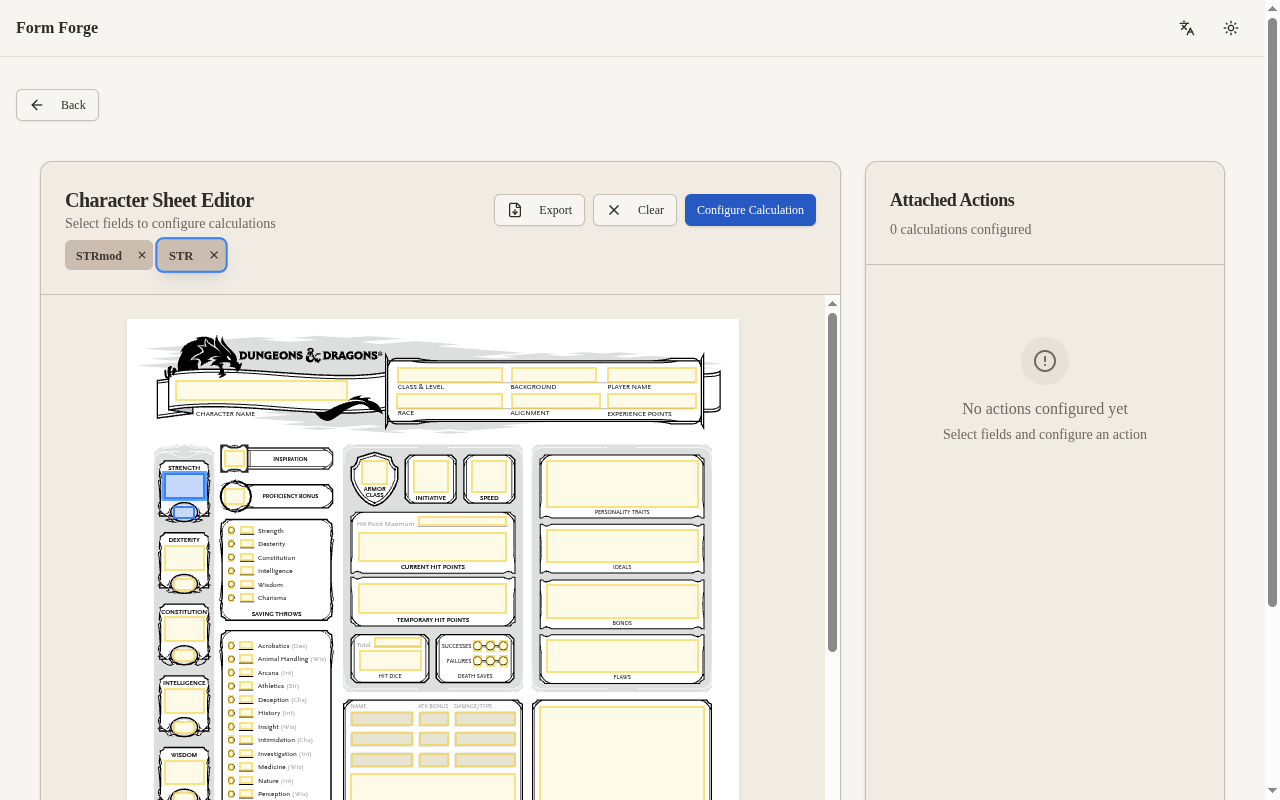
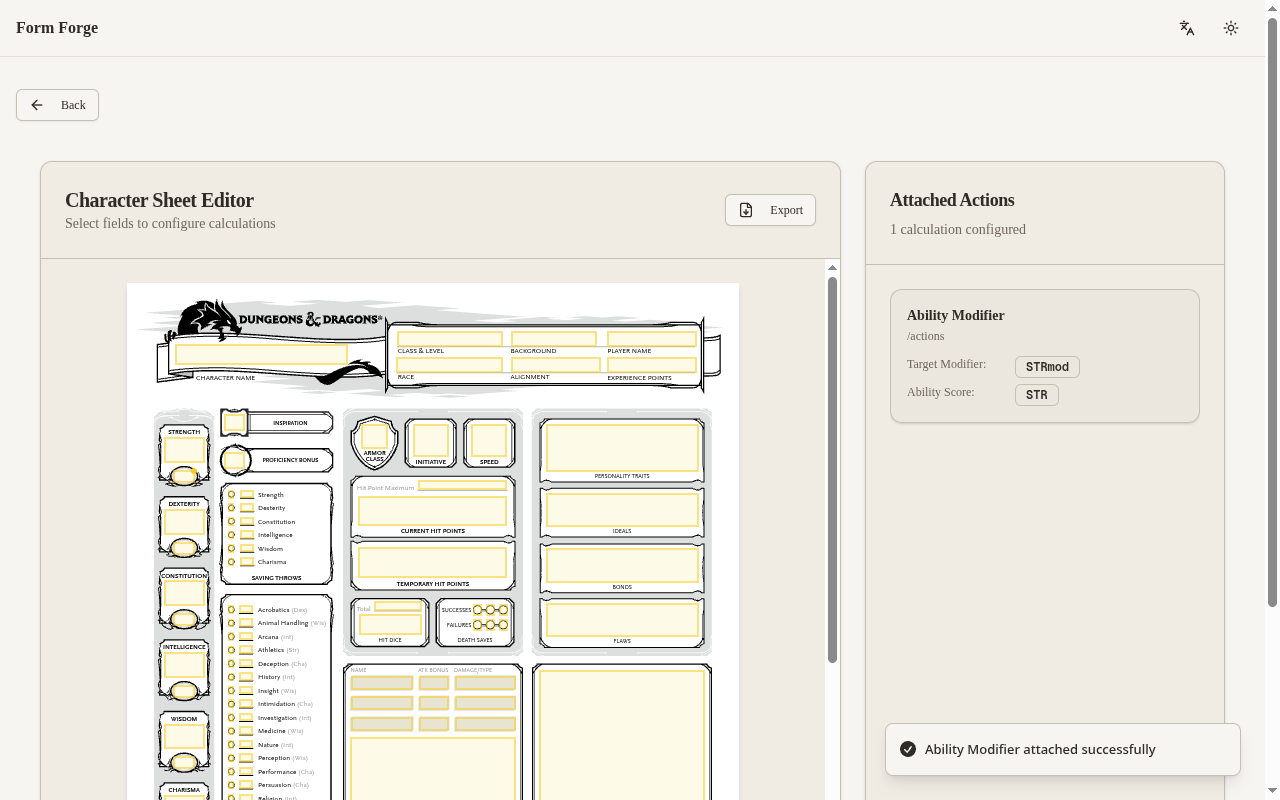
The viewer shows your sheet with a button on every box it found. Click the
boxes that belong to one calculation. To set up a Strength modifier, click
your Strength score box (STR) and the box where the modifier should appear
(STRmod). The boxes you pick stay highlighted, so you can check them before
moving on.
3. Set up the calculation
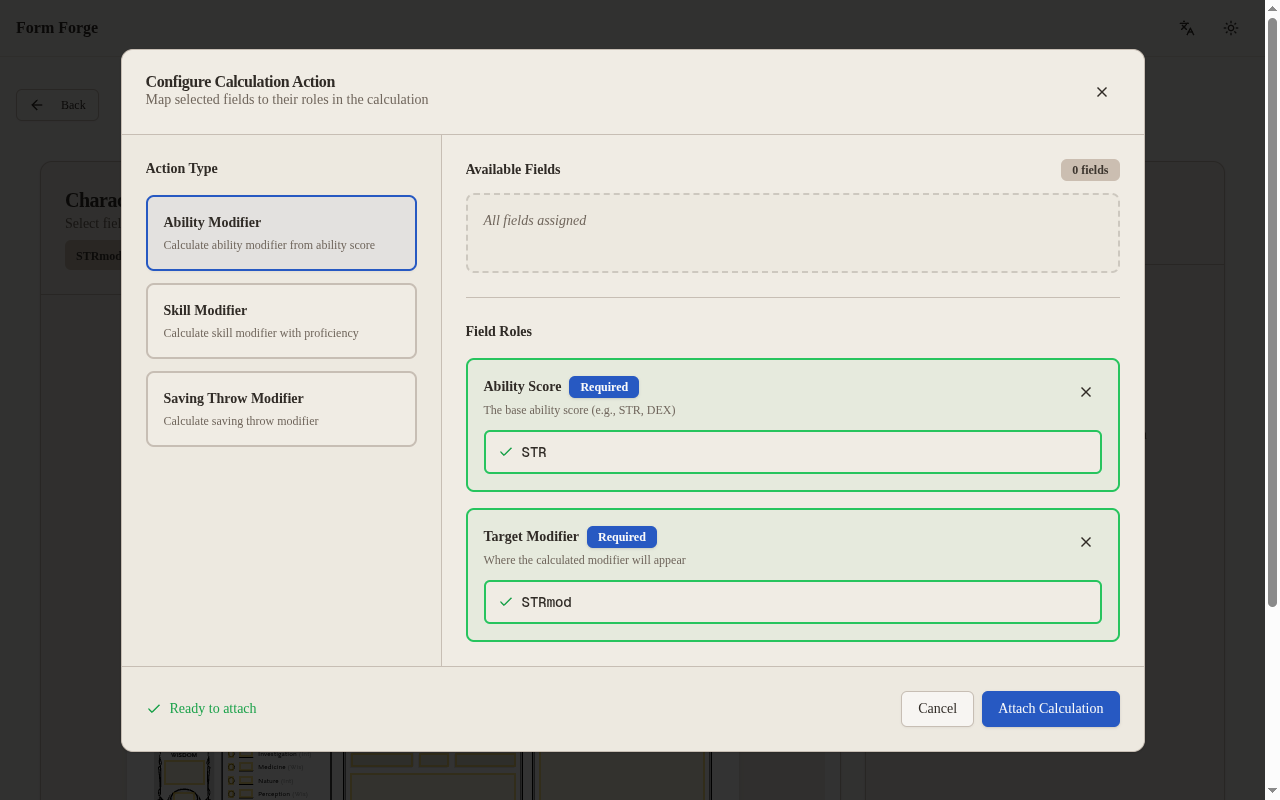
With your boxes picked, click Configure Calculation and choose Ability Modifier. Form Forge asks which box plays which part. An Ability Modifier needs the box that holds the Ability Score and the box that shows the Target Modifier. Pick one of your selected boxes for each part from the dropdowns, then click Attach Calculation. The calculation shows up in the list on the side.
4. Download your sheet
Click Export. Form Forge hands back your character sheet with the calculation built in.
Open it in the right reader
Open the exported PDF in a reader that runs form calculations, such as Adobe Acrobat Reader. Type a Strength score and watch the modifier fill itself in. Some phone and in-browser previewers skip these calculations, so if the numbers don't update, try Acrobat Reader.
Add more calculations
Saving throws and skill checks work the same way, with a few more parts to fill in. See Saving throws & skill checks for those, and the calculation reference for every type and the fields it needs.